Daily Distance Report
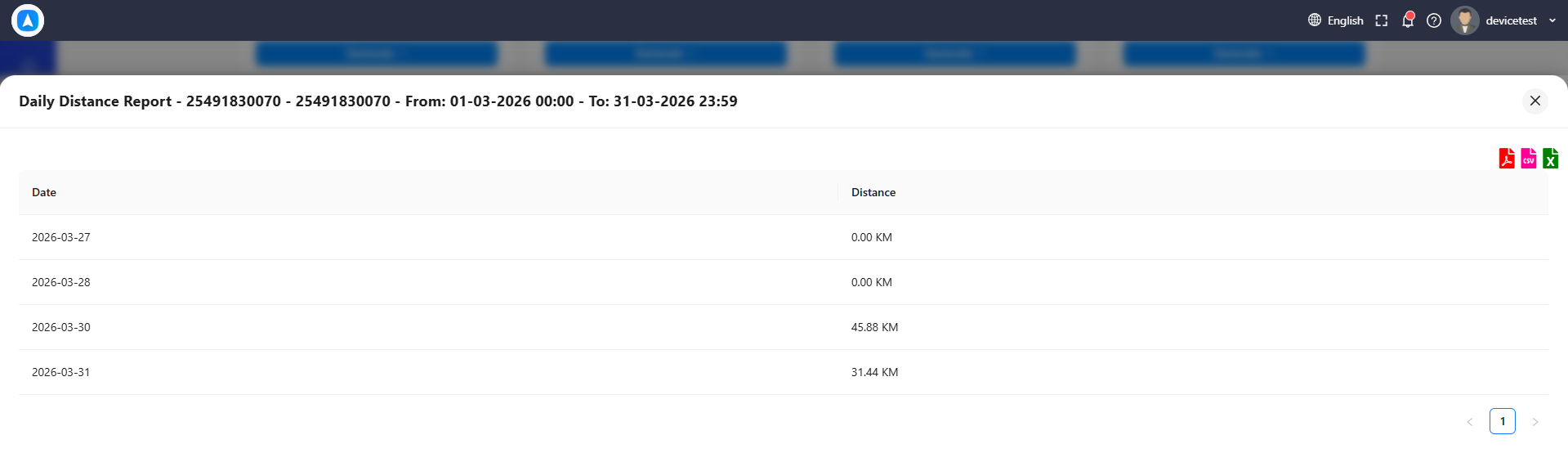
The Daily Distance Report provides a straightforward day-by-day breakdown of how far a vehicle traveled. It is the simplest distance report available, focusing purely on distance without additional trip or time details.
What the Report Shows
Each row represents one day and includes:
| Field | Description |
|---|---|
| Date | Calendar date |
| Distance | Total distance traveled that day (km or miles) |
| Status | Whether the vehicle was active or inactive |
A summary row at the bottom displays the total distance for the entire selected period.
Trends
The report highlights trends in daily distance to help you spot patterns:
- Consistent daily distance indicates regular, predictable usage.
- Spikes may indicate unusually long routes, detours, or personal use.
- Drops to zero indicate days the vehicle was not used.
Export the report to Excel and create a simple bar chart to visualize distance trends over a month. This makes it easy to present fleet utilization data to management.
Best For
- Mileage tracking -- Maintain accurate odometer-equivalent records for each vehicle based on GPS data.
- Billing by distance -- Use daily and total distance figures for invoicing clients or calculating lease charges.
- Maintenance scheduling -- Track cumulative distance to trigger service intervals (e.g., oil change every 10,000 km).
How to Generate
- Go to Reports and select Daily Distance.
- Choose a vehicle.
- Select a date range.
- Tap Generate.
The distance shown is calculated from GPS data points and represents the actual road distance traveled. It may differ slightly from the vehicle's physical odometer due to GPS precision and data sampling rates.
Days with poor GPS reception or device outages may underreport distance. If you notice a day with unexpectedly low distance, check the device's connectivity status for that period.