Map View
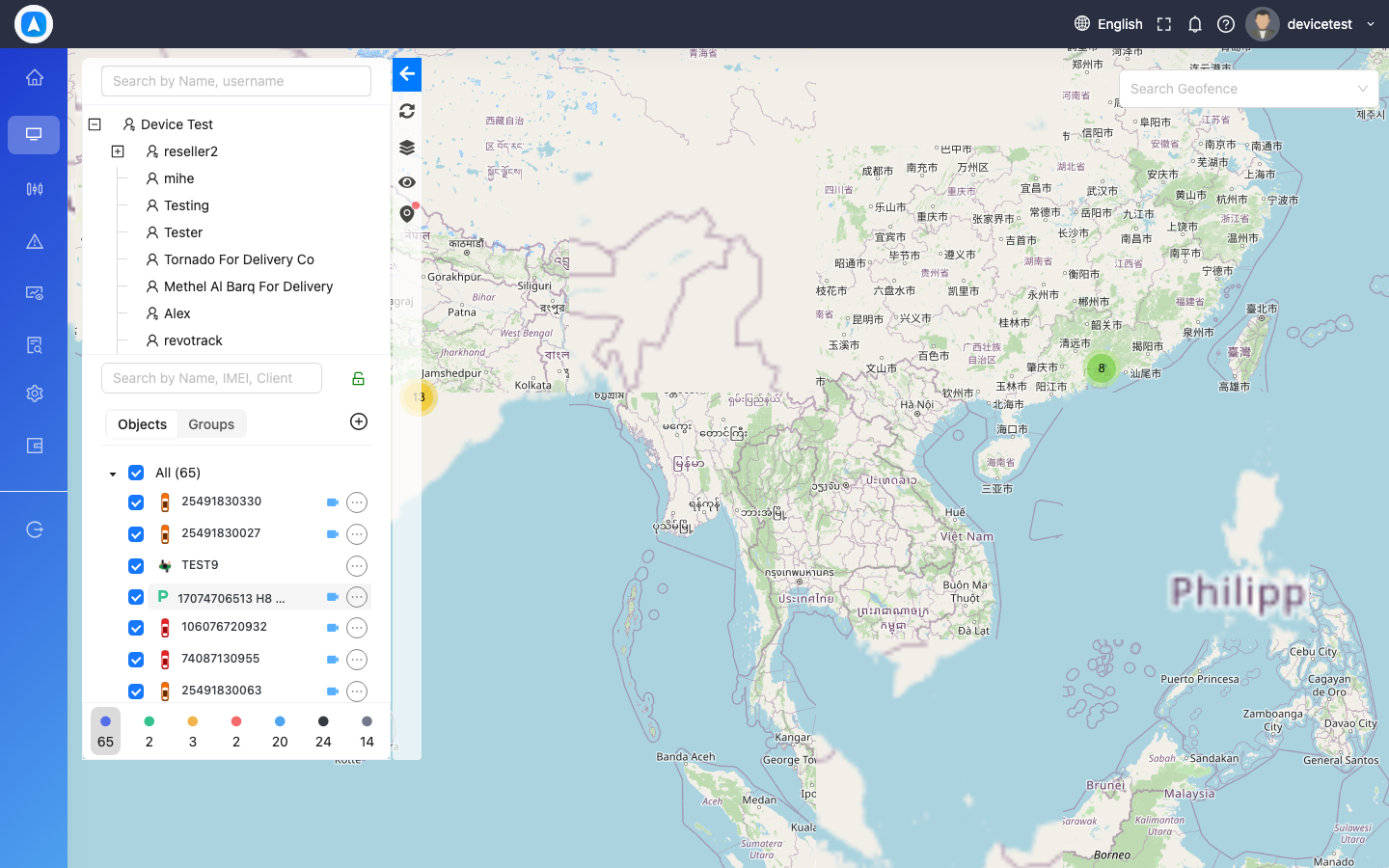
The Map View is the primary interface for monitoring your fleet in real time. Every tracked vehicle appears as a color-coded marker on an interactive map, updating its position automatically.
Vehicle Markers
Each vehicle is represented by a directional marker on the map. The marker color indicates the vehicle's current status:
| Color | Status | Meaning |
|---|---|---|
| Green | Moving | Vehicle is currently in motion |
| Yellow | Idle | Engine is on but the vehicle is stationary |
| Red | Stopped | Engine is off and vehicle is parked |
| Grey | Offline | No data received recently; device may be powered off or out of coverage |
Hover over (web) or tap (mobile) any marker to see a quick summary including vehicle name, speed, and last known address.
Map Types
Switch between map types using the layers control in the top-right corner of the map:
- Normal -- Standard road map with street names and points of interest.
- Satellite -- Aerial imagery for real-world context.
- Hybrid -- Satellite imagery overlaid with road labels and names.
- Traffic -- Standard map with live traffic congestion data highlighted.
Search
Use the search bar at the top of the map to find a specific vehicle by name, plate number, or IMEI. On mobile, tap the search icon to reveal the search field. Results filter in real time as you type, and selecting a result centers the map on that vehicle.
Cluster View
When many vehicles are in close proximity, the map automatically groups them into numbered clusters to keep the view clean. The cluster badge shows the count of vehicles in that area. Zoom in or tap a cluster to expand and reveal individual markers.
Cluster view activates automatically at lower zoom levels. As you zoom in, clusters break apart into individual vehicle markers.
Web vs. Mobile
| Feature | Web | Mobile |
|---|---|---|
| Map gestures | Scroll to zoom, click-drag to pan | Pinch to zoom, swipe to pan |
| Vehicle details | Hover for tooltip, click for detail panel | Tap for detail sheet |
| Map type switcher | Top-right layers button | Top-right layers button |
| Search | Always-visible search bar | Tap search icon to expand |
| Full screen | Available via expand button | Map is full screen by default |
If vehicles appear grey or offline, verify that the GPS device is powered on and has cellular connectivity. Prolonged offline status may indicate a hardware or SIM issue.