Single Object Tracking
Single Object Tracking provides a focused, detailed view of one vehicle. The map centers on the selected vehicle and follows it as it moves, while a live info panel displays speed, heading, sensor readings, and more.
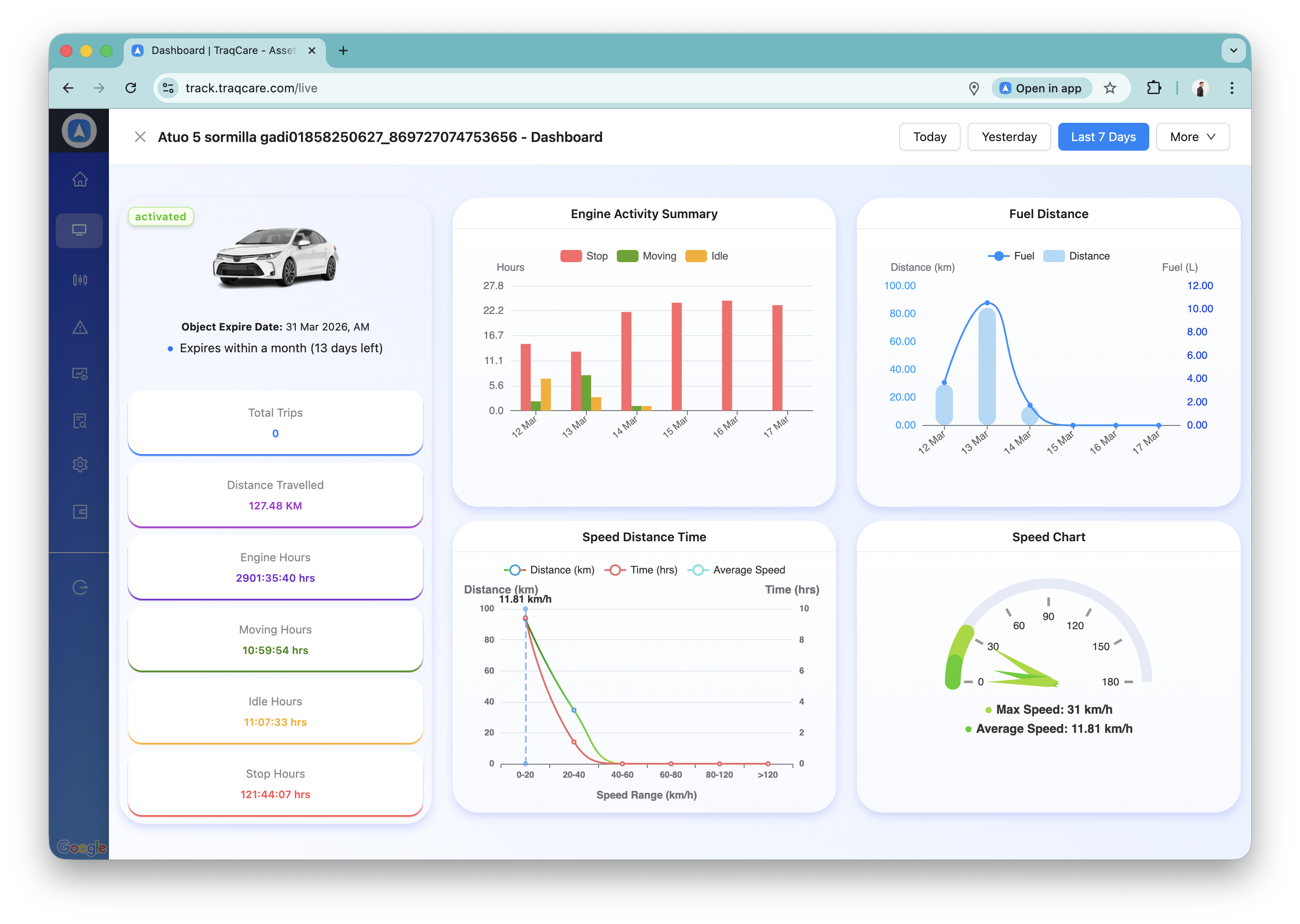
Entering Single Object View
- Web: Click on any vehicle marker on the map, or click a vehicle in the Object List.
- Mobile: Tap a vehicle marker or tap a vehicle card in the Object List.
The map zooms in to the selected vehicle and begins following its movements in real time.
3D Follow Mode (Mobile)
On the mobile app, you can enable 3D Follow Mode for an immersive perspective that tilts the map and rotates it to match the vehicle's heading. This gives a driver's-eye view of the route as it unfolds.
Toggle 3D Follow Mode using the compass button in the bottom-right corner of the map on mobile. Tap again to return to the standard top-down view.
Live Info Panel
The info panel displays real-time telemetry for the selected vehicle:
| Field | Description |
|---|---|
| Speed | Current speed in km/h or mph |
| Heading | Direction of travel (e.g., North, South-East) |
| Altitude | Elevation above sea level (if supported by device) |
| Address | Reverse-geocoded street address of current position |
| Coordinates | Latitude and longitude |
| Ignition | Engine on/off status |
| Last Update | Timestamp of the most recent data point |
Sensor Data
If the vehicle's GPS device has connected sensors, additional data appears below the info panel:
- Fuel Level -- Current fuel level as a percentage or volume (requires fuel sensor)
- Temperature -- Cabin or cargo temperature (requires temperature probe)
- Battery Voltage -- Vehicle battery level and device internal battery status
- Door Status -- Open/closed state (requires door sensor)
Sensor data availability depends on the hardware installed in each vehicle. Not all fields appear for every vehicle.
Quick Actions
The Single Object view provides a set of quick-action buttons for immediate operations:
| Action | Description |
|---|---|
| Call Driver | Initiates a phone call to the assigned driver (mobile) or shows the number (web) |
| SMS | Send an SMS message to the driver |
| Share Location | Generate a shareable live tracking link |
| Playback | Open route playback for this vehicle |
| Reports | Jump to the reports section filtered to this vehicle |
| Street View | Open Google Street View at the vehicle's current position |
| GPRS Command | Send a remote command to the GPS device |
| Immobilize / Mobilize | Remotely cut or restore the vehicle's engine relay |
Immobilize sends a command to the GPS device to cut the engine relay. Only use this when the vehicle is stationary. Immobilizing a moving vehicle is dangerous and may cause an accident. Always confirm the vehicle is stopped before issuing this command.
Navigating Away
- Web: Click the back arrow or select a different vehicle to exit single object view.
- Mobile: Swipe down on the info panel or tap the back button to return to the full fleet view.