Object List View
The Object List provides a scrollable, filterable list of every vehicle in your fleet. Each entry displays live status information at a glance, making it ideal for large fleets where scanning a map is impractical.
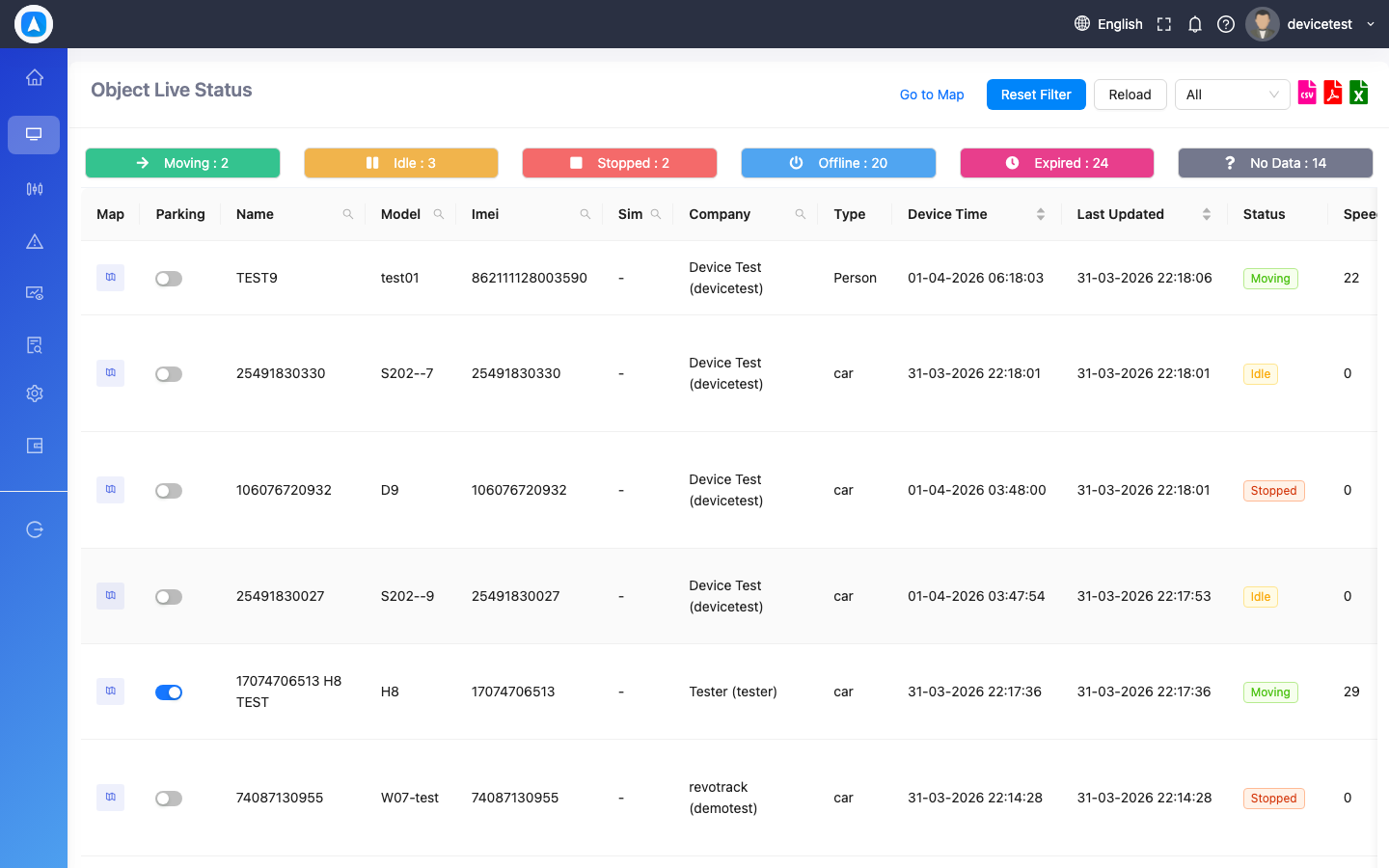
Status Filters
Use the filter tabs at the top of the list to narrow down vehicles by their current status:
| Filter | Description |
|---|---|
| All | Every vehicle in your fleet |
| Online | All vehicles currently reporting data (moving, idle, or parked) |
| Offline | Vehicles that have not sent data recently |
| Idle | Engine running but not moving |
| Moving | Currently in motion |
| Parked | Engine off, stationary |
The count beside each filter tab updates in real time, so you can instantly see how many vehicles fall into each category.
Vehicle Card Details
Each vehicle card in the list shows the following information:
- Vehicle Name -- The assigned name or plate number
- Status Indicator -- Color-coded badge matching the map marker colors
- Speed -- Current speed in km/h or mph (depending on your settings)
- Address -- Reverse-geocoded address of the vehicle's last known position
- Last Update -- How long ago the most recent data was received (e.g., "2 min ago")
Quick Actions
Each vehicle card includes quick-action buttons for common tasks:
- Locate on Map -- Centers the map on the selected vehicle
- Playback -- Jump directly to route playback for that vehicle
- Share -- Generate a shareable live location link
- Reports -- Open the reports section filtered to this vehicle
Web-Specific Features
On the web app, the Object List includes additional capabilities:
- Export -- Export the current list (with active filters) to CSV or Excel for record-keeping or offline analysis.
- Column Sorting -- Sort by name, status, speed, or last update time.
- Bulk Selection -- Select multiple vehicles for batch actions.
Mobile-Specific Features
On the mobile app:
- Pull-to-Refresh -- Swipe down on the list to force an immediate data refresh.
- Swipe Actions -- Swipe a vehicle card to reveal quick actions like call driver or share location.
- Tap to Track -- Tap any card to open Single Object Tracking for that vehicle.
The Object List and Map View stay in sync. Selecting a vehicle in the list highlights it on the map, and vice versa.
If the "Last Update" for a vehicle shows a long time ago (e.g., hours or days), the device may be offline. Check the device's power supply and cellular signal.