Getting Started
Welcome to Traqcare — your complete GPS tracking and fleet management platform. This guide covers everything you need to know to use the web app and mobile app effectively.
Download & Access
| Platform | Link |
|---|---|
| Web App | track.traqcare.com |
| Android | Google Play Store |
| iOS | Apple App Store |
Logging In
Web App
- Open your browser and navigate to track.traqcare.com
- Enter your username and password
- Click Login

Mobile App
- Download the Traqcare app from the Google Play Store or Apple App Store
- Open the app on your iOS or Android device
- Enter your username and password
- Optionally configure the server URL if using a custom deployment
- Tap Login
tip
Your administrator will provide your login credentials. If you forget your password, use the Change Password option or contact your admin.
Dashboard Overview
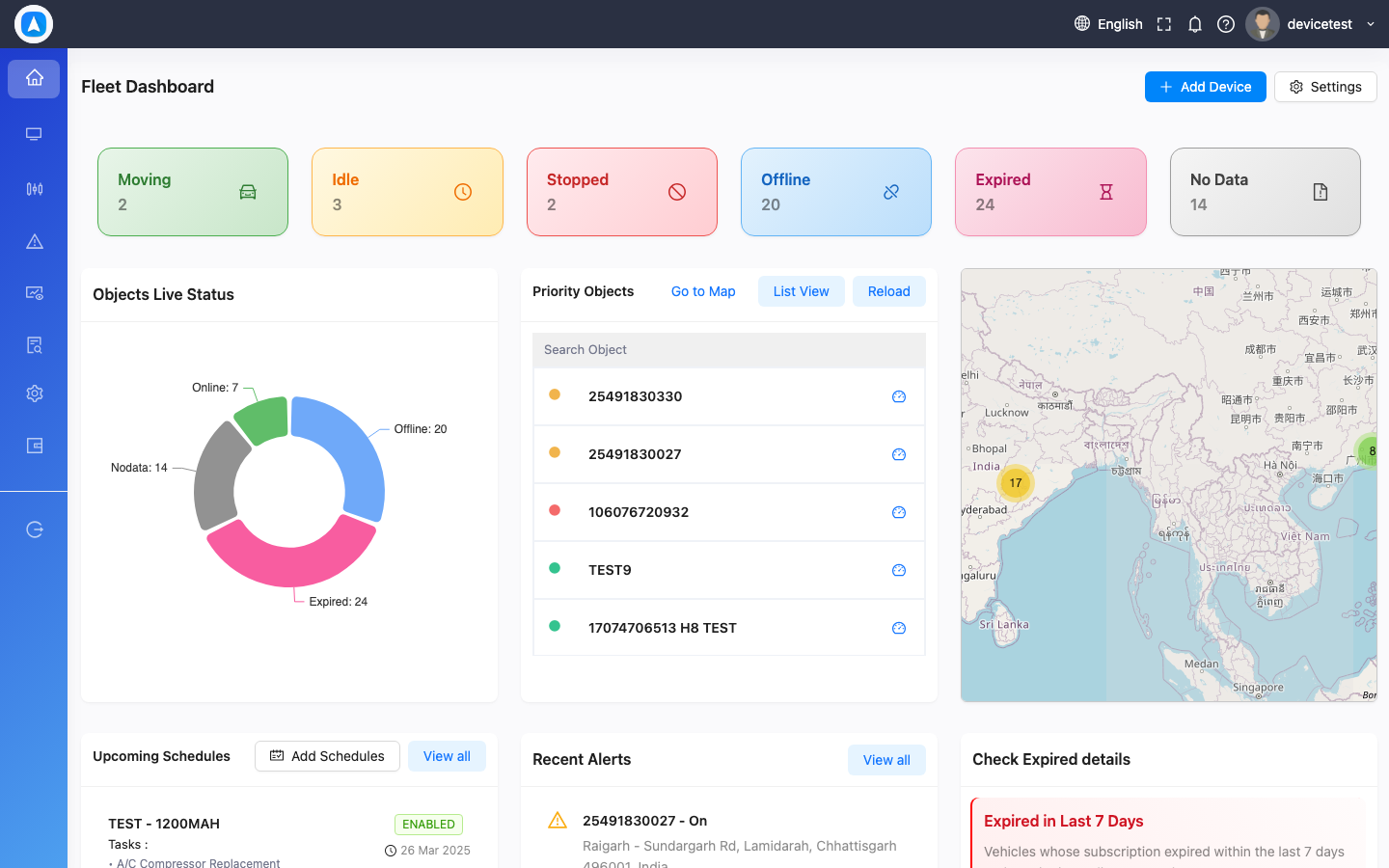
After logging in, you'll see the Dashboard — your central hub for fleet status at a glance.
| Element | Description | Platform |
|---|---|---|
| Vehicle Status Summary | Counts of Moving, Idle, Parked, Offline vehicles with color-coded indicators | Web & Mobile |
| Status Pie Chart | Visual breakdown of fleet status distribution | Web & Mobile |
| Recent Alerts | Latest triggered alerts (overspeed, geofence, etc.) | Web |
| Maintenance Schedules | Upcoming and overdue maintenance reminders | Web |
| Expired Subscriptions | Devices with expired or soon-to-expire subscriptions | Web |
| Announcements | System-wide announcements from your provider | Web |
| Quick Map View | Mini map showing all vehicle locations | Mobile |
Navigation
Web — Sidebar Menu
- Dashboard — Home & Geofence Dashboard
- Monitor — List View & Map View
- GeoJsons — Geofences, POI, Routes, Trips
- Alerts — Alert configuration
- Maintenance — Schedules & Expenses
- Reports — All report types
- Settings — System, Profile, Devices, Users
- Wallet — Subscriptions & Coins (Admin/Reseller)
Mobile — Bottom Tabs
- Dashboard — Status overview & charts
- List View — All objects with live status
- Map View — All objects on the map
- More — Settings, Geofences, POI, Alerts, Reports, Support
User Roles & Permissions
| Role | Access Level | Key Capabilities |
|---|---|---|
| User | Standard | View assigned vehicles, reports, alerts, playback. Cannot manage devices or other users. |
| Admin | Full Account | Everything a User can do + manage sub-users, drivers, devices, object groups, wallet. |
| Reseller | Multi-Client | Everything an Admin can do + manage sub-clients, transfer coins, SIM management. |
| Super Admin | System-wide | Full platform access including dev tools, system configuration. |
Vehicle Status Colors
Understanding the status colors used throughout the platform:
| Color | Status | Meaning |
|---|---|---|
| 🟢 Green | Moving | Vehicle is in motion |
| 🟠 Orange | Idle | Engine running, vehicle not moving |
| 🔴 Red | Stopped | Engine off, vehicle parked |
| ⚪ Grey | Offline | No data received from device |
| 🔵 Blue | Parked | In parking mode (long-duration stop) |
Login Logs
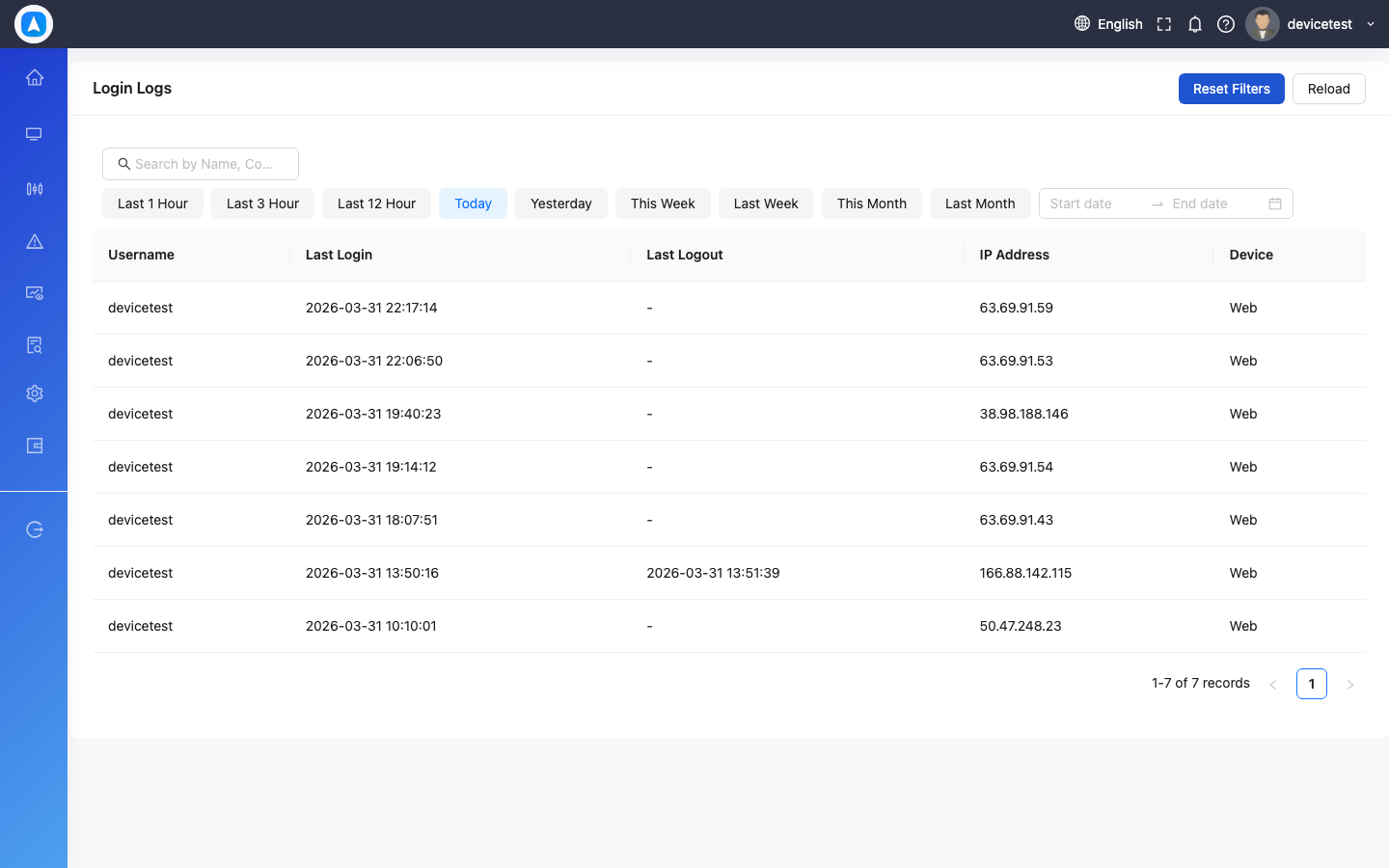
View your login history at Settings > Login Logs: