Alert Report
The Alert Report provides a comprehensive historical log of every alert triggered across your fleet. Each entry includes the alert type, the time it occurred, the vehicle involved, and the location -- giving you a complete audit trail for safety and compliance.
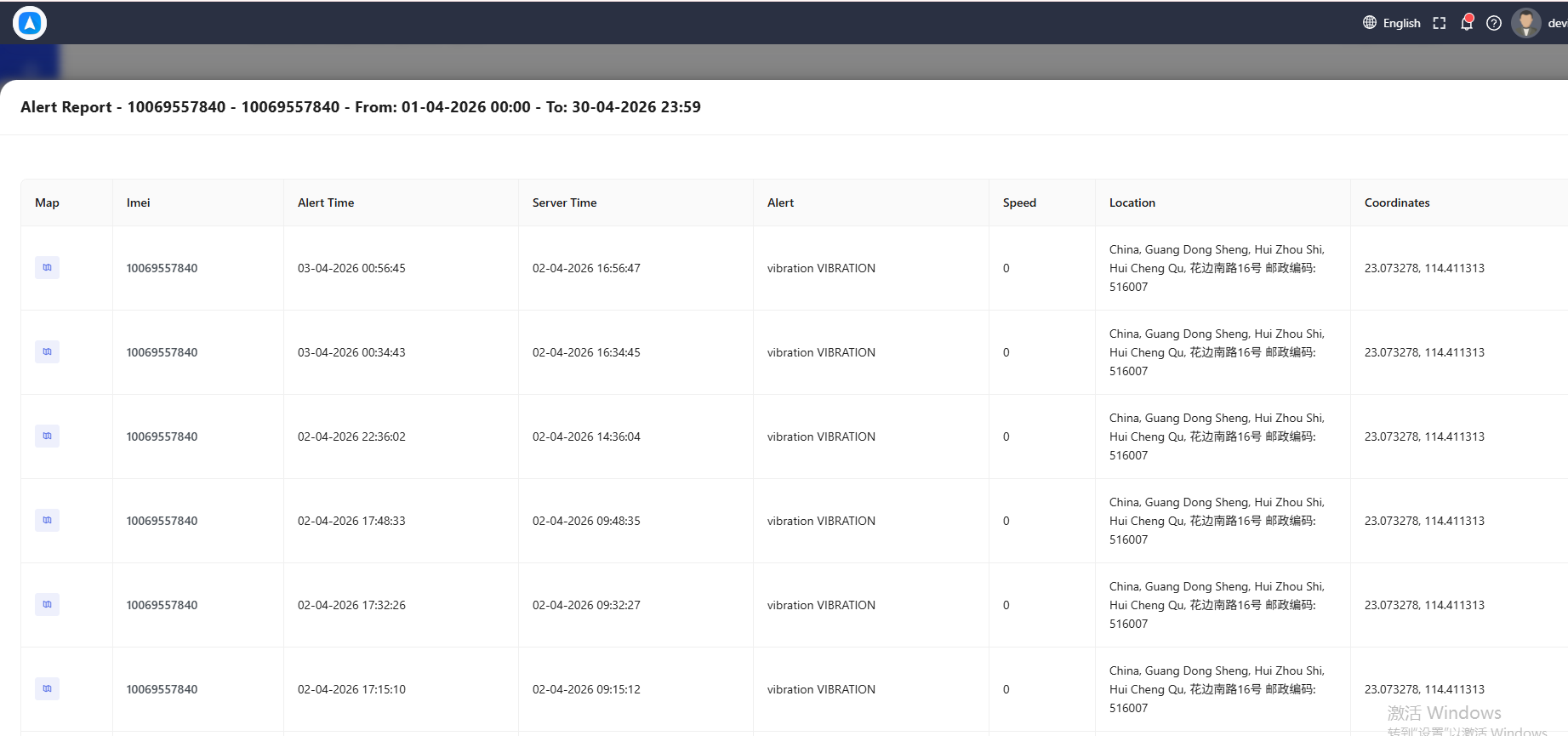
What the Report Shows
Each alert entry includes:
| Field | Description |
|---|---|
| Date & Time | When the alert was triggered |
| Vehicle | Name or plate number of the vehicle |
| Alert Type | Category of the alert (e.g., Overspeed, Geofence Exit, SOS, Harsh Braking) |
| Details | Specific information such as speed at time of alert, geofence name, etc. |
| Location | Reverse-geocoded address where the alert occurred |
| Coordinates | Latitude and longitude |
A summary section shows:
- Total Alerts -- Count of all alerts in the period
- Alerts by Type -- Breakdown of alert counts by category
Common Alert Types
| Alert Type | Triggered When |
|---|---|
| Overspeed | Vehicle exceeds the configured speed limit |
| Geofence Entry | Vehicle enters a defined geographic zone |
| Geofence Exit | Vehicle leaves a defined geographic zone |
| SOS / Panic | Driver presses the SOS button on the device |
| Harsh Braking | Sudden deceleration detected |
| Harsh Acceleration | Sudden acceleration detected |
| Tow Alert | Vehicle moves while ignition is off |
| Low Battery | Device or vehicle battery drops below threshold |
| Ignition On/Off | Engine started or stopped |
Best For
- Safety compliance -- Maintain records of speed violations, harsh driving events, and SOS activations for regulatory compliance or insurance purposes.
- Incident investigation -- When an accident or complaint occurs, use the alert log to reconstruct what happened leading up to the event.
- Driver coaching -- Identify drivers who frequently trigger overspeed or harsh driving alerts and provide targeted training.
Filter the report by alert type to focus on specific issues. For example, filter by "Overspeed" to review all speeding incidents and identify repeat offenders.
How to Generate
- Go to Reports and select Alert Report.
- Choose a vehicle or select all vehicles.
- Set the date range.
- Tap Generate.
Only alerts that were actively configured and enabled during the selected period will appear. If an alert type was added recently, historical data before the configuration date will not be available.
A high volume of alerts may indicate that alert thresholds are set too sensitively. Review your alert configuration if you are receiving an excessive number of notifications.