Custom Report
The Custom Report feature lets you design your own report by selecting exactly which data fields to include. Instead of using a fixed report format, you build a template with the columns that matter to your operation — then run it whenever needed.
Custom Reports are only available in the Traqcare web application. They are not currently available in the mobile app.
How to Create a Custom Report Template
- Go to Reports in the left sidebar.
- Select Custom Report.
- Click Create New or the + button.
- Enter a Report Name and optional Description.
- From the available fields list, check the fields you want to include.
- Drag and reorder the selected fields using the drag handle (≡) to set your preferred column order.
- Click Save to store the template.
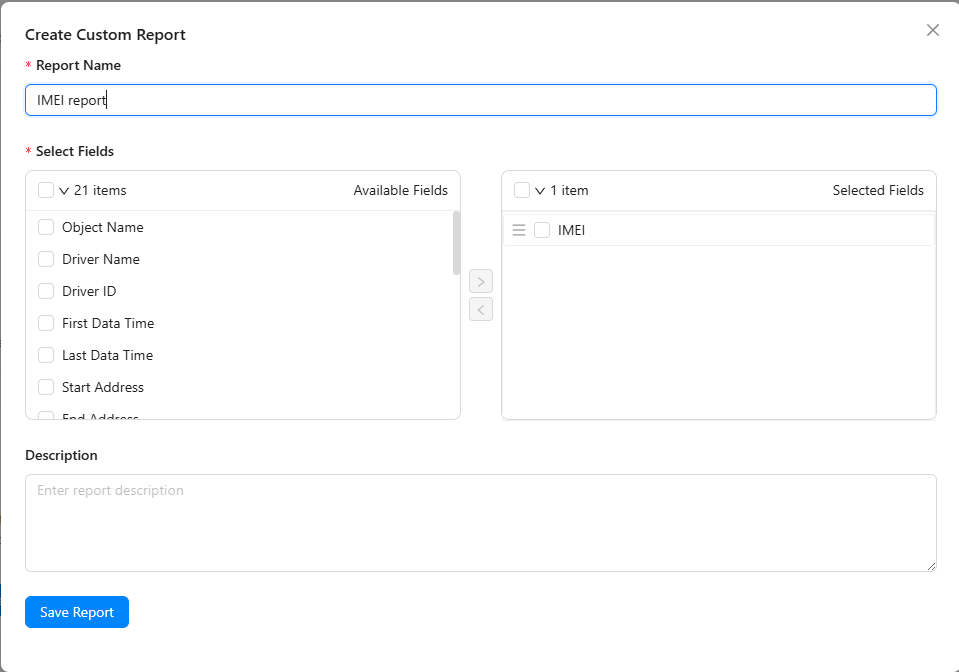
Available Data Fields
You can include any combination of the following fields in your custom report:
| Field | Description |
|---|---|
| IMEI | Device IMEI number |
| Object Name | Name of the tracked vehicle or asset |
| Driver Name | Assigned driver's name |
| Driver ID | Assigned driver's ID |
| First Data Time | Timestamp of the first data point in the period |
| Last Data Time | Timestamp of the last data point in the period |
| Start Address | Address at the start of the period |
| End Address | Address at the end of the period |
| Start Location | GPS coordinates at the start |
| End Location | GPS coordinates at the end |
| Duration | Total time covered by the report period |
| Distance | Total distance traveled |
| Trip Count | Number of trips completed |
| Engine Hours | Total engine-on time |
| Run Time | Total time the vehicle was moving |
| Idle Time | Total time engine was on but vehicle was stationary |
| Stop Time | Total time the vehicle was stopped (engine off) |
| Max Speed | Maximum speed recorded |
| Average Speed | Average speed across the period |
| Total Fuel Consumed | Total fuel consumption (requires fuel sensor) |
| Total Theft Events | Number of detected fuel theft events |
| Total Refuel Events | Number of detected refueling events |
Running a Custom Report
Once a template is saved:
- Go to Reports > Custom Report.
- Select the saved template from the list.
- Choose the vehicle(s) and date range.
- Click Generate.
Managing Templates
- Edit: Click the edit icon next to a template to modify its name, description, or fields.
- Delete: Remove templates you no longer need.
- Templates are saved per client account and are available to all admin users within the same account.
Export Options
Custom Reports support the same export formats as all standard reports:
| Format | Use |
|---|---|
| Formal records, client sharing, printing | |
| Excel (.xlsx) | Further analysis, pivot tables |
| CSV | Data import into other systems |
Custom Reports are particularly useful for management dashboards where you need a concise view that combines metrics from multiple standard reports into one. For example, combine Distance, Idle Time, Fuel Consumed, and Driver Name to get a driver efficiency summary in a single report.
Fuel-related fields (Total Fuel Consumed, Total Theft Events, Total Refuel Events) will only contain data for vehicles that have a fuel sensor configured. For other vehicles, these fields will appear blank.