Camera Settings
Camera Settings allow you to configure video streaming for vehicles equipped with dashcams or DVR camera systems. Like Fuel Calibration, this tab only appears when a Camera sensor is selected in the Device Sensors configuration.
How to Configure
- Go to Settings > Devices
- Find the device and click Modify
- Go to the Device Sensors tab and add/select a Camera sensor — the Camera Settings tab only appears once the camera sensor is configured
- Switch to the Camera Settings tab
- Configure the camera settings as described below
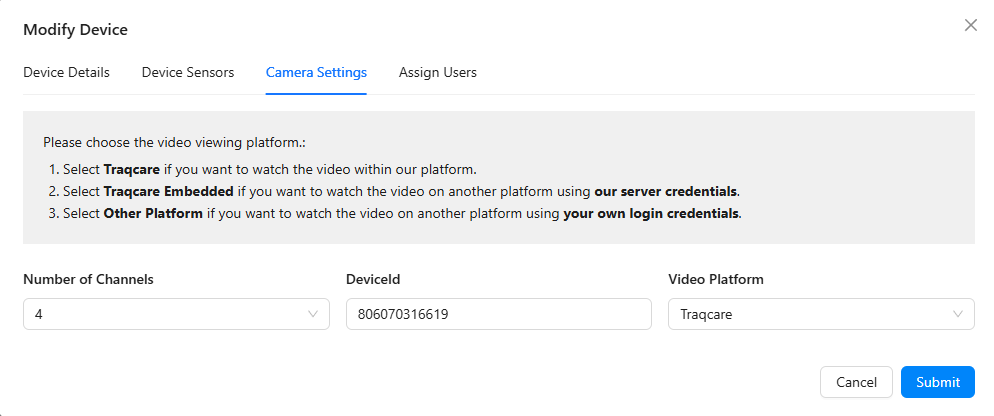
Video Platform Options
Choose which platform will be used to view the video feed:
| Platform | Description |
|---|---|
| Traqcare | Watch video directly within the Traqcare platform. No additional setup needed. |
| Traqcare Embedded | Watch video on another platform using Traqcare's server credentials. Useful for integrating Traqcare video into third-party systems. |
| Other Platform | Watch video on another platform using your own login credentials. Requires manual configuration of account, password, IP, and port. |
Configuration Fields
Common Fields (All Platforms)
| Field | Description |
|---|---|
| Number of Channels | Number of camera channels on the device: 1, 4, 9, or 16 |
| Device ID | The camera device's unique identifier (provided by the camera manufacturer) |
| Video Platform | Select: Traqcare, Traqcare Embedded, or Other Platform |
Additional Fields (Other Platform Only)
When Other Platform is selected, the following additional fields appear:
| Field | Description |
|---|---|
| Account | Login account for the external video platform |
| Password | Password for the external video platform |
| Video IP | IP address of the external video server |
| Video Port | Port number for the video streaming connection |
For most users, select Traqcare as the video platform. This provides the simplest setup — video will be viewable directly from the Live Tracking map and Video Playback pages without any additional configuration.
The number of channels should match the physical camera setup on the vehicle. A typical dashcam has 1 channel, while a full DVR system may have 4, 9, or 16 channels for multiple camera angles (front, rear, sides, interior).
Viewing Video After Setup
Once camera settings are configured, you can access video from:
- Live Tracking — Click on a vehicle > Video Control button for live streaming
- Video Playback — Navigate to the Video Playback page to review recorded footage with timeline controls
- Object Gallery — View captured snapshots from the device camera
Video streaming requires the camera device to have an active cellular data connection with sufficient bandwidth. Poor network conditions may result in buffering or lower video quality.