Subscriptions
The Subscriptions page shows every vehicle/device in your account with its current subscription status — active, expired, or expiring soon. From here you can activate a single device, bulk-activate multiple devices at once, and transfer coins to sub-clients.
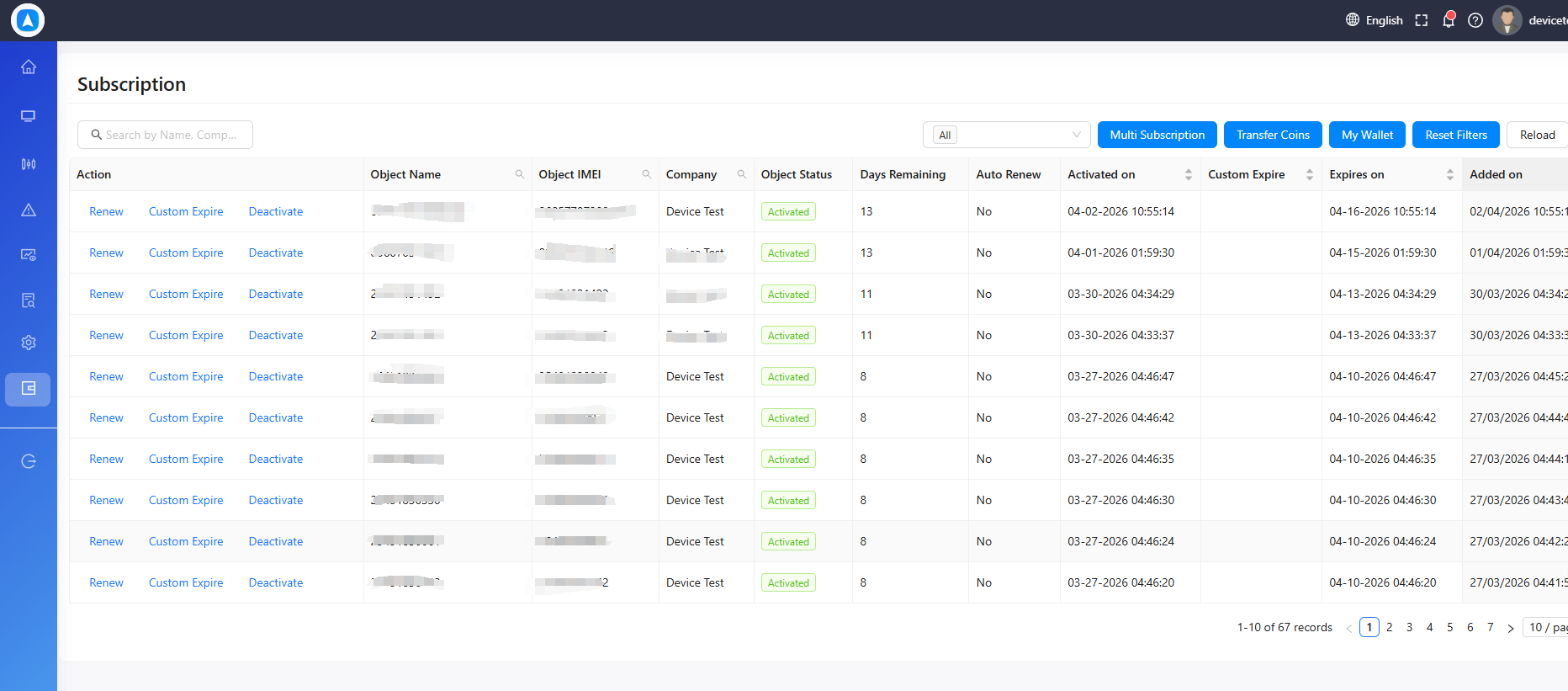
Subscription Status Overview
Each row in the subscriptions table shows:
| Column | Description |
|---|---|
| Vehicle Name | Name of the tracked object |
| IMEI | Device IMEI number |
| Status | Active / Expired / Expiring Soon (color-coded) |
| Expiry Date | When the current subscription ends |
| Remaining Days | Days left before expiry |
| Auto-Renew | Whether auto-renewal is enabled |
Use the status filter at the top to quickly show only Active, Expired, or Expiring Soon devices.
Add Single Subscription
Activate or renew the subscription for one device at a time.
- Find the device in the table and click the Activate (or Renew) button in its row.
- The Activation form opens. Fill in:
| Field | Description |
|---|---|
| Client | The client account this device belongs to (resellers can switch client) |
| Subscription Term | Choose the subscription duration — shows your available coin balance and the resulting expiry date for each option |
| Auto-Renew | Toggle on to automatically renew when the subscription expires (uses coins from your wallet) |
- Review the coin cost shown next to each subscription term.
- Click Activate and confirm in the popup.
If you don't have enough coins for the selected term, you will see a "Not enough coins" message. Go to Wallet to check your balance or request more coins from your super admin.
Add Multiple Subscriptions (Bulk Activate)
Activate or renew subscriptions for many devices at once in a single operation.
- Click the Multi Subscription button at the top of the Subscriptions page.
- The bulk activation form opens:
| Field | Description |
|---|---|
| Client | Select the client account (resellers can switch) |
| Object Status | Filter the list by All / Active / Expired / Expiring Soon |
| Subscription Term | Choose the duration to apply to all selected devices |
| Select Vehicles | Use the transfer panel to move devices from the left (available) to the right (selected for activation) |
- The transfer panel shows all vehicles on the left. Move the ones you want to activate to the right side using the arrow buttons, or drag them across.
- The system calculates the total coins required based on the number of selected vehicles × the chosen term.
- Click Activate and confirm.
Use the Object Status filter to quickly load only expired devices and bulk-renew them in one shot.
Bulk activation deducts coins for all selected devices in a single transaction. Make sure your wallet balance is sufficient before confirming.
Transfer Coins
Send coins from one client account to another — for example, from a reseller account to a sub-client so they can activate their own devices.
- Click the Transfer Coins button at the top of the Subscriptions page.
- Fill in the transfer form:
| Field | Description |
|---|---|
| From Client | The account to deduct coins from (your account or a client you manage) |
| To Client | The account to receive the coins |
| Coin Type | Select the subscription term type (e.g., 1 Month, 3 Month, 1 Year) — shows available balance |
| Number of Coins | How many coins to transfer |
- The form validates that the From Client has enough available coins for the transfer.
- Click Transfer and confirm.
Transferred coins appear immediately in the recipient's wallet. The transaction is logged in both accounts' transaction history.
Auto-Renew
When Auto-Renew is enabled on a device:
- The system automatically renews the subscription on expiry using available coins from the client's wallet.
- If there are not enough coins at renewal time, the subscription will not auto-renew and the device will go offline.
- Auto-Renew status can be toggled per device from the single activation form or directly in the subscriptions table.
Subscription Expiry Alerts
Traqcare sends email notifications before subscriptions expire:
- 7 days before expiry — reminder sent to the account admin
- On expiry — device stops reporting
Keep your wallet funded and auto-renew enabled to avoid unexpected tracking gaps.