Coins & Wallet
Traqcare uses a coin-based credit system to manage device subscriptions. Each coin type corresponds to a subscription duration (e.g., 1 Month, 3 Months, 1 Year). You spend coins to activate or renew device subscriptions, and you can distribute coins to sub-clients under your account.
How Coins Work
- Coins are credited to your wallet by your super admin or through a purchase/recharge.
- You spend coins to activate or renew device subscriptions — 1 coin = 1 device for that subscription term.
- Resellers can transfer coins to their sub-clients so those clients can manage their own activations.
- All coin movements are logged in the Transaction History.
Wallet Overview
Navigate to Wallet from the left sidebar to see your coin balances.
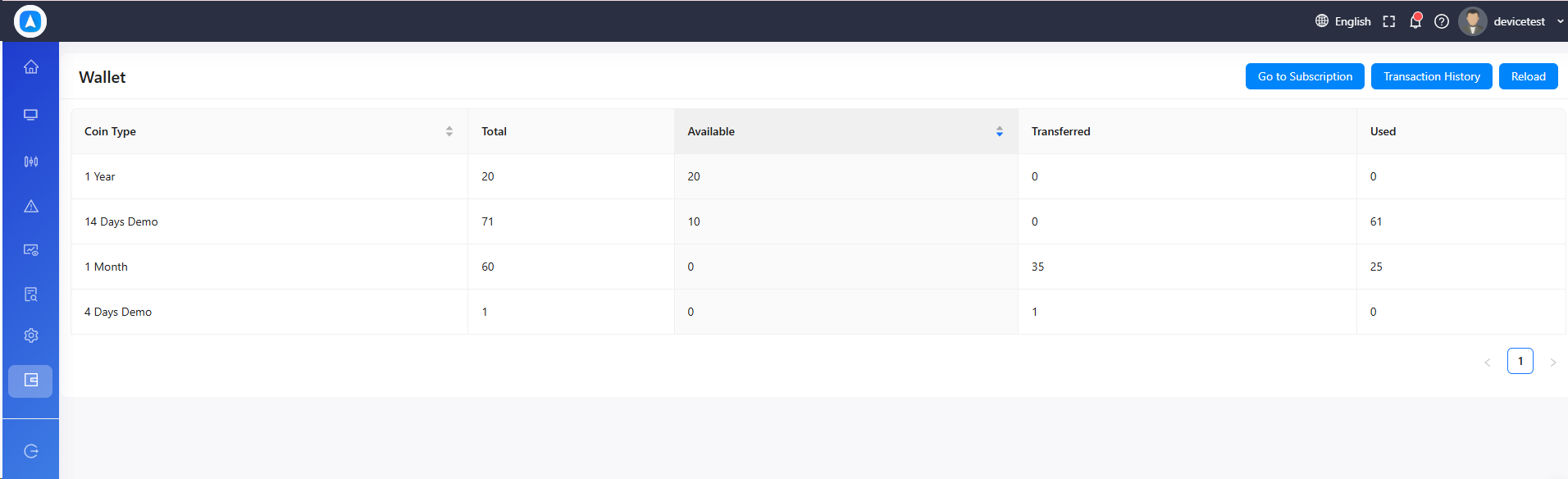
The wallet table shows one row per coin type:
| Column | Description |
|---|---|
| Coin Type | The subscription duration this coin represents (e.g., "1 Month", "1 Year") |
| Total | Total coins ever credited to this account |
| Available | Coins currently available to use or transfer |
| Transferred | Coins sent to sub-clients (already distributed) |
| Used | Coins spent on device activations |
Available = Total − Transferred − Used. If Available is 0 and you need to activate devices, contact your admin to request a recharge.
Transfer Coins to a Sub-Client
Resellers can send coins from their own wallet to any client they manage, so those clients can activate their own devices.
- Go to Subscriptions (or Wallet) and click Transfer Coins.
- Fill in the transfer form:
| Field | Description |
|---|---|
| From Client | The account to deduct coins from — defaults to your own account |
| To Client | The client account that will receive the coins |
| Coin Type | Choose the subscription term type — shows your current available balance for that type |
| Number of Coins | How many coins to transfer |
- The form will show an error if the From Client does not have sufficient balance.
- Click Transfer → confirm in the popup.
Transferred coins are immediately available in the recipient's wallet. Both accounts will see the transaction logged in their Transaction History.
Coin transfers are not reversible from the UI. If you transfer coins to the wrong client, contact your super admin to correct it.
Transaction History
The Transaction History provides a full audit trail of every coin movement on your account.
Navigate to Wallet → Transaction History (or directly from the Wallet page button).
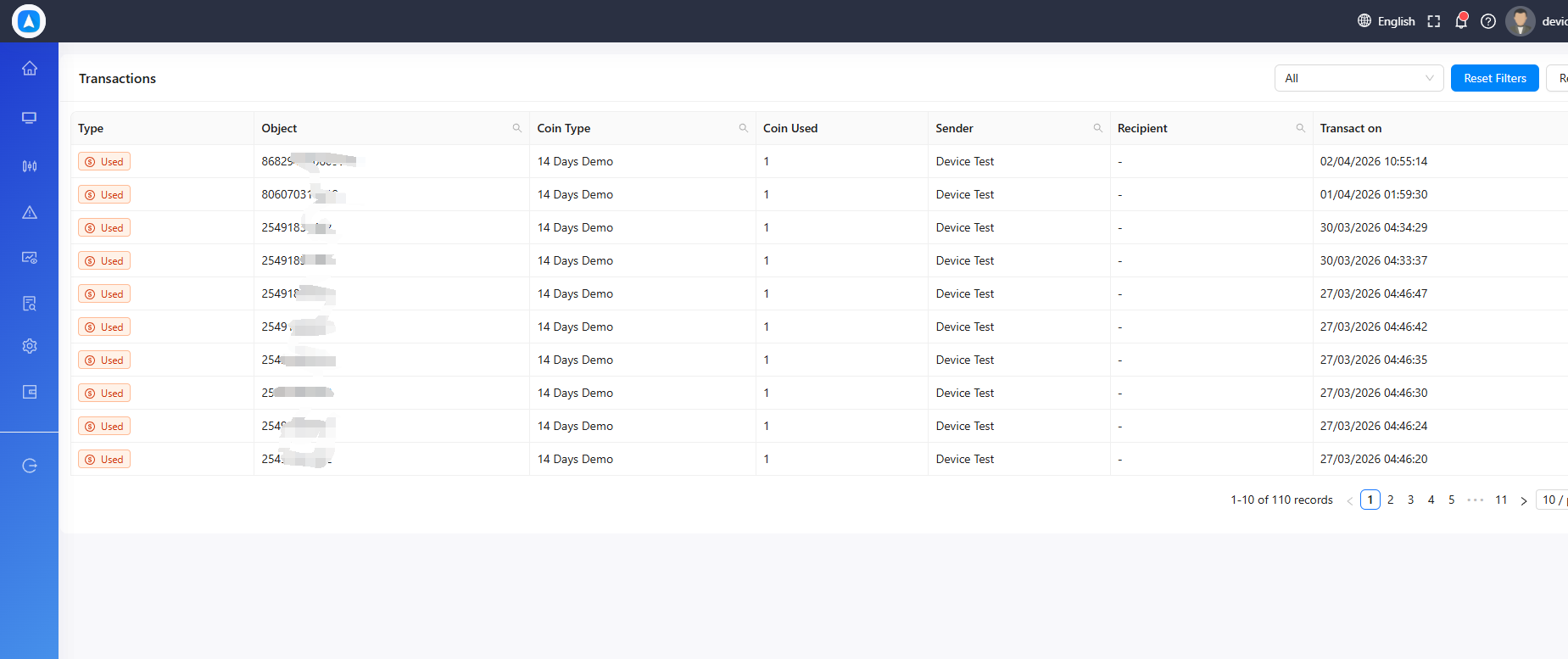
Each transaction shows:
| Column | Description |
|---|---|
| Date | When the transaction occurred |
| Type | Send / Received / Activation / Mine |
| Coin Type | Which subscription term was involved |
| Amount | Number of coins debited or credited |
| From Client | Source account (for transfers) |
| To Client | Destination account (for transfers) |
| Object / Device | Device name (for activation transactions) |
Transaction Types
| Type | What It Means |
|---|---|
| Activation | Coins used to activate or renew a device subscription |
| Send | Coins transferred out to a sub-client |
| Received | Coins received from a parent account |
| Mine | Coins credited via the coin mining/recharge process |
Use the Type filter at the top to view only one category of transactions at a time.
Low Balance Alerts
If you try to activate a device and don't have enough coins, you will see:
"You don't have enough coins! Contact your admin to request more coins."
To avoid subscription lapses:
- Enable Auto-Renew on active devices so they renew automatically when coins are available.
- Monitor your Available balance regularly, especially before large fleet activations.
- Request a recharge from your super admin in advance.