Fuel Calibration
Fuel calibration is configured per device through the device's sensor settings — not from a standalone page.
How to Calibrate
- Go to Settings > Devices
- Find the device and click Modify
- Go to the Device Sensors tab and add/select a Fuel Sensor — the Fuel Calibration tab only appears once a fuel sensor is configured
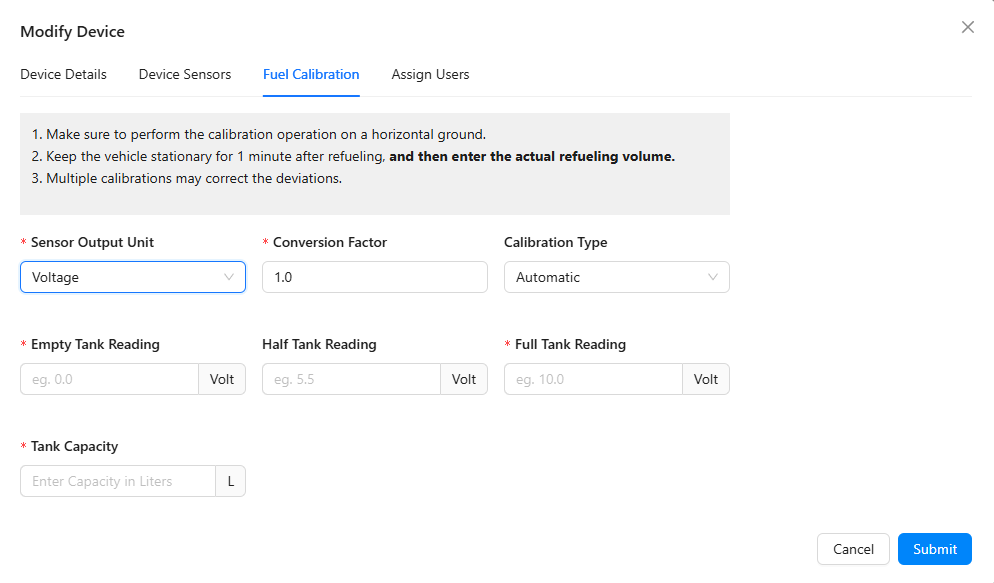
- Switch to the Fuel Calibration tab
- Configure the sensor:
- Sensor Output Unit — choose the unit your sensor reports in:
- Voltage — raw voltage output (most common for analog sensors)
- Liter — sensor already reports in liters
- Gallon — sensor reports in gallons
- Percentage — sensor reports as tank percentage
- Conversion Factor — multiplier to convert raw sensor values to actual fuel levels (default: 1.0)
- Sensor Output Unit — choose the unit your sensor reports in:
- Follow the calibration instructions:
- Perform calibration on horizontal ground
- Keep the vehicle stationary for 1 minute after refueling, then enter the actual refueling volume
- Multiple calibrations may correct deviations
- Click Submit to save
Other Device Sensor Tabs
The Modify Device dialog also includes:
| Tab | Purpose |
|---|---|
| Device Details | IMEI, model, name, SIM info |
| Device Sensors | Configure additional sensors (temperature, etc.) |
| Fuel Calibration | Fuel sensor output and conversion setup |
| Camera Settings | Video camera configuration |
| Assign Users | Link device to specific users |
tip
If your fuel readings seem inaccurate, try recalibrating with a known refuel amount. Fill the tank with a measured quantity and enter the exact volume during calibration.
info
The /fuel route in the web app is a legacy page and is not actively used. All fuel sensor configuration is done through the device modification dialog described above.